

The builder
Files & attachments
The day's file hub, pinning files to strips, and video links.
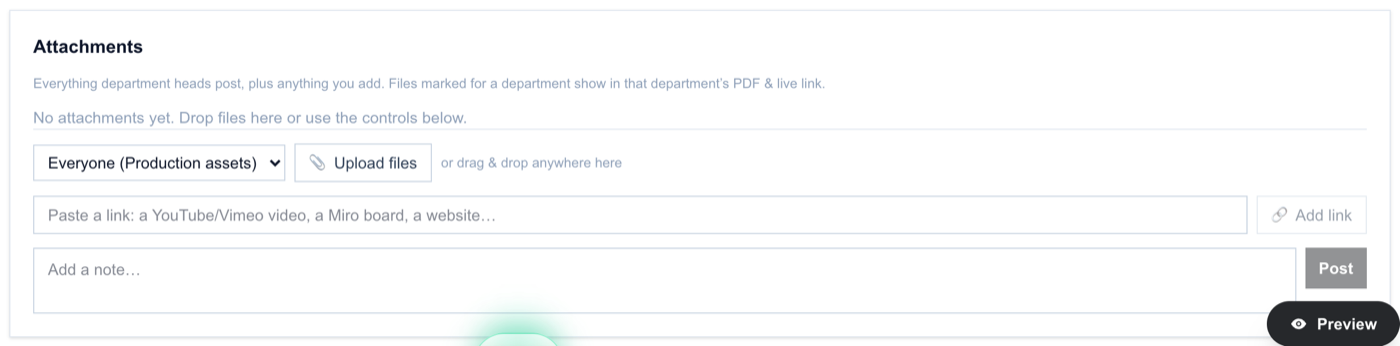
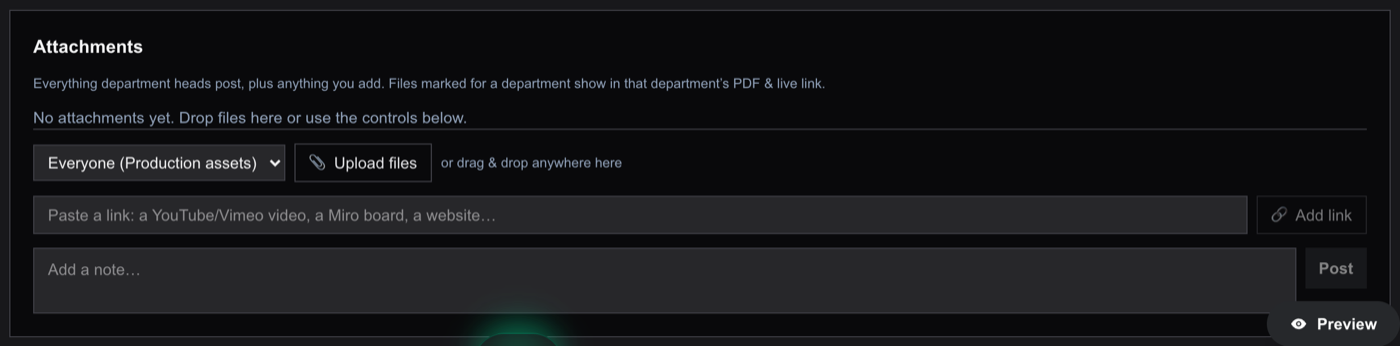
The Attachments section is the day's file hub: every file and link for the day, as tiles. Upload from the hub, drag files onto the Attachments section, or drop them straight onto a schedule strip. Files cap at 15MB each; images are compressed automatically on upload, PDFs and other documents upload untouched.
Pinning files to a moment
Drag a file onto a schedule strip to pin it there: a storyboard on its scene, a schematic on the pre-light. The strip grows a paperclip; clicking it opens an inline tray of that strip's files, where you can preview, reorder, add more with the + tile, or delete. Strips without files show a faint paperclip on hover that opens a chooser (upload or paste a link).
Links and video
Paste or drag any URL: YouTube, Vimeo, Loom, and Google Drive links become playable tiles with real thumbnails that open in an in-page player. Other links (a Miro board, a brand site) open in a new tab. The video's own title becomes the label.
Who sees what
- Every tile has an audience chip: Everyone, or one audience group (any department, Client, or Agency). Recipients only see files for their audience.
- The eyeball hides a tile from recipients entirely (admins and producers still see it, dimmed).
- Department heads can post files for their own department from the live link, when the org or project allows it.
- Each file can carry a caption, which prints under it on the PDF.
PDF exports include attachment pages: images render as full pages with captions, and attached PDFs are stapled in whole. You can turn attachment pages off per project in Preferences > PDF.
Something here out of date or missing? Tell us: support@getallsheets.com