

The builder
Building the schedule
Strips, editing times, Cascade, multi-select, and columns.
The schedule is a stack of strips: scenes, banners (meals, builds, wrap, breaks), and company moves. Add them with the buttons at the bottom of the schedule; drag the dotted handle to reorder.
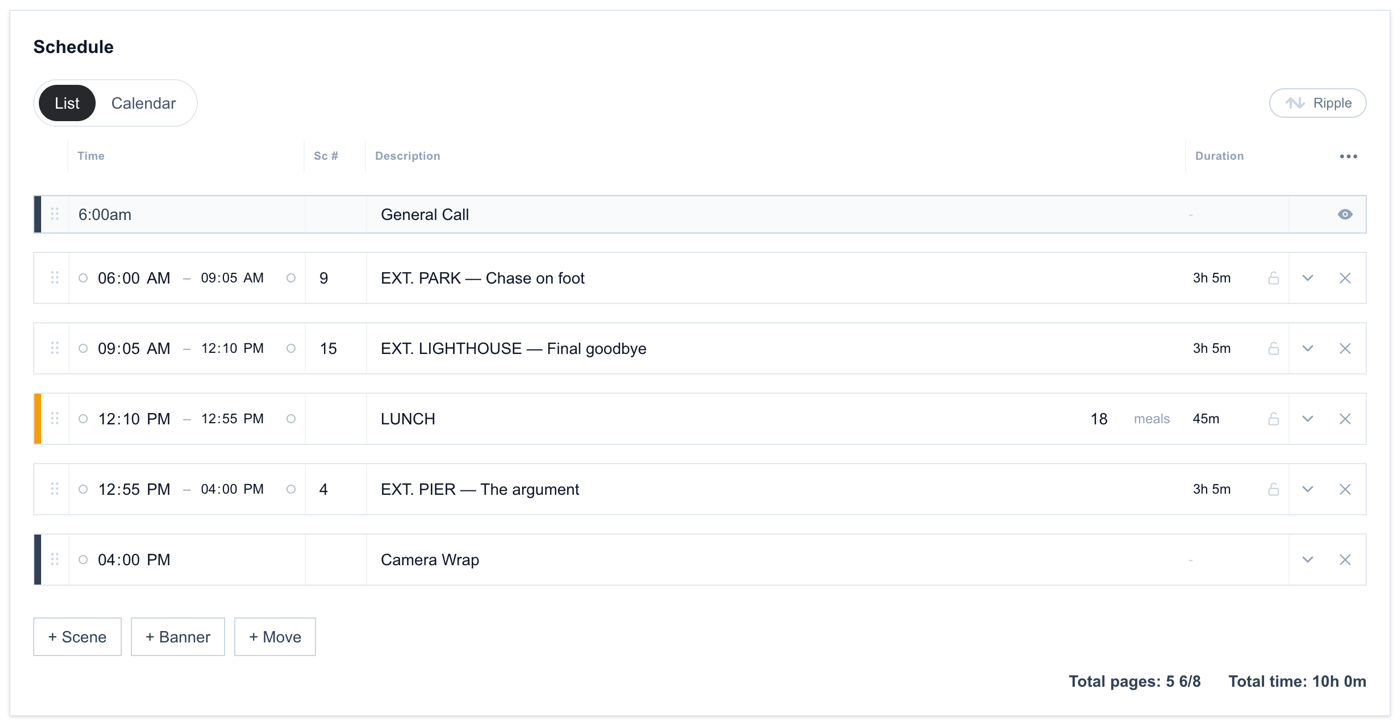
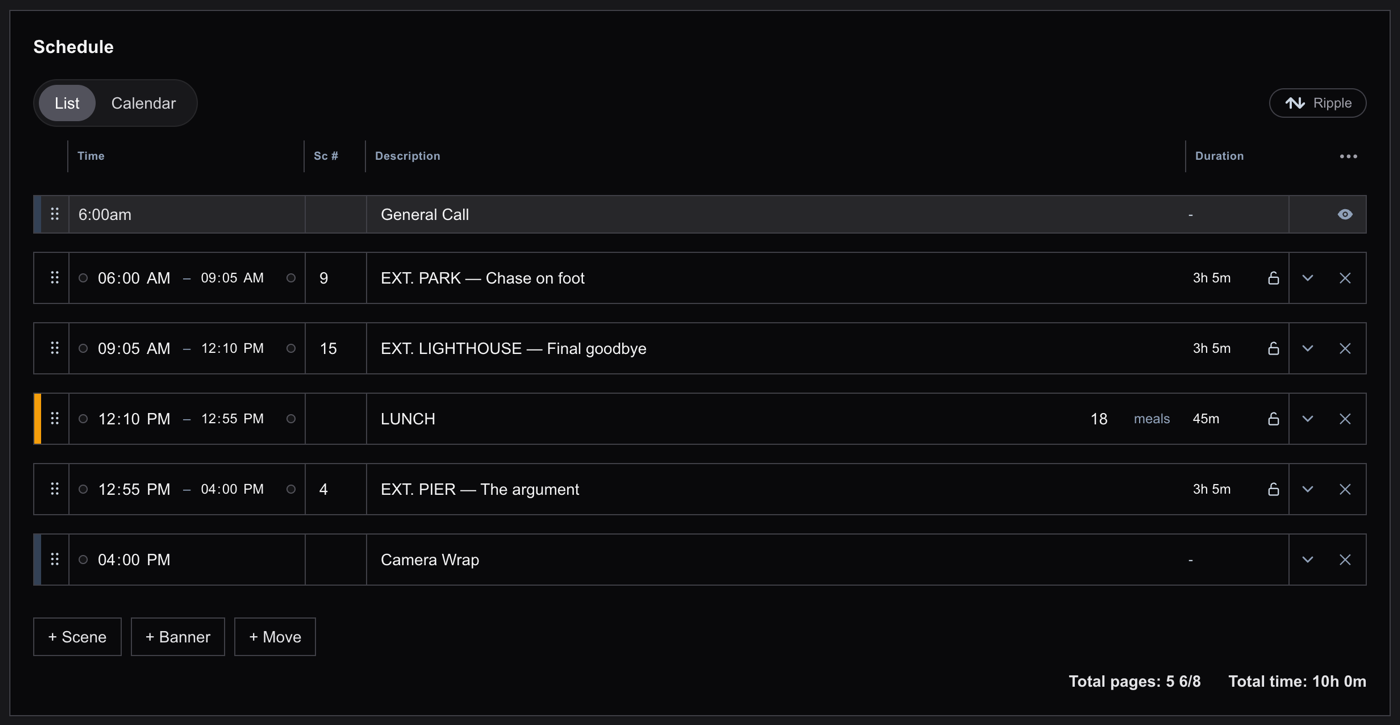
Reordering is the fastest thing to feel for yourself. Grab a handle and drag a block; the times recompute down the day. Try it right here:
Try it — reorder the day
Grab a ⠿ handle and drag a block to a new spot. The start times recalculate down the day automatically — the same cascade the real builder uses.
Editing times
- Click a start or end time to type it.
- Drag a time sideways to scrub it in 5-minute steps. Hold Cmd (Mac) or Ctrl (Windows) while dragging for 1-minute steps.
- On phones: tap a time for the picker, or press and hold (you will feel a short buzz) and drag to scrub.
- Duration and end time are both editable and each drives the other; the newest edit wins. The padlock locks a strip's duration so its end always follows its start.
- Banners and moves can be untimed: scrub the duration to zero or use the Untimed toggle.
How strips flow
Strips you have not touched chain together: each one starts when the strip above it ends, so an early edit carries naturally down the day. Once you set a strip's start by hand it is pinned and holds its time. The Sort by time button restores chronological order if editing leaves strips out of sequence, and the General Call strip marks your call time at the top (hide it with the eyeball if you do not want it printed).
Moving strips in bulk
- Cascade: the arrow button by the schedule header. With Cascade on, editing one start shifts everything above, below, or all, depending on the mode.
- Multi-select: click a strip's empty space to select it, Shift-click for a range, Cmd-click to toggle, or drag a box around several. Scrub or type any selected start and the whole selection shifts together; the = and - keys nudge by 5 minutes, + and _ by 30.
- On phones, press and hold a strip to start selecting, then tap others to add them.
Columns
The three-dot button (or right-clicking a column header) customizes columns: Time, Scene #, Description, Duration, and the builder-only Visibility column. (A strip's Type is changed in its expanded view, not via a column.) Drag header chips to reorder, drag a header's right edge to resize. Hiding the Time column never deletes times; a timed strip shows its time in parentheses after its title instead.
Audiences
A strip's tag chip targets it: whole departments, production assistants only, or specific people. Restricted strips disappear entirely for anyone outside the audience; non-restricted ones stay visible but recipients can filter to Just Mine on the live link.
Common questions
- Why did other strips move when I changed one time?
- Strips you have never manually timed follow the strip above them. That cascade is what keeps a rough day easy to shape. Set a strip's start directly and it pins in place.
- What is a push move?
- A short company move: a quick reposition to a nearby setup. Add it as a company move with a small duration.
Something here out of date or missing? Tell us: support@getallsheets.com